
Hi! This is our first blog post, hooray! We decided to start with a detailed setup guide for installing Paper VPN. It works on all the most popular OS:
● Android,
● iOS,
● Windows,
● macOS,
● Android TV,
● Apple TV.
Look for yours in the article below.
Pre-Setup Steps
1. Check Your Device and Operating System
First, make sure your device meets these requirements:
● Android 5 or later,
● iOS 15 or later,
● Windows 10 or later,
● macOS 11 or later.
If you have an earlier version of the OS, update it to a newer version or connect to the VPN from another device.
2. Find Your Paper VPN Login or Access Key
There are two ways to log in to Paper VPN:
● with your email (that’s your login) and password,
● with an access key.
Email login is easier. But for some apps you need the access key.
How to find your Paper VPN access key
1. Go to your account.
2. Open Subscriptions
3. Tap Main key
4. Tap the key itself to copy it to the clipboard — it starts with https.

3. Choose the Right App for Your Device
For each operating system, we have several apps you can use. If you're not sure which app to choose, install Paper VPN.
How to Set Up Paper VPN on Android
Use Paper VPN, Paper VPN Lite, Happ or Hiddify.
Paper VPN App
1. Install the app from Google Play.
If you have a Huawei smartphone or another device where Google Play is not available, download the installation file here.
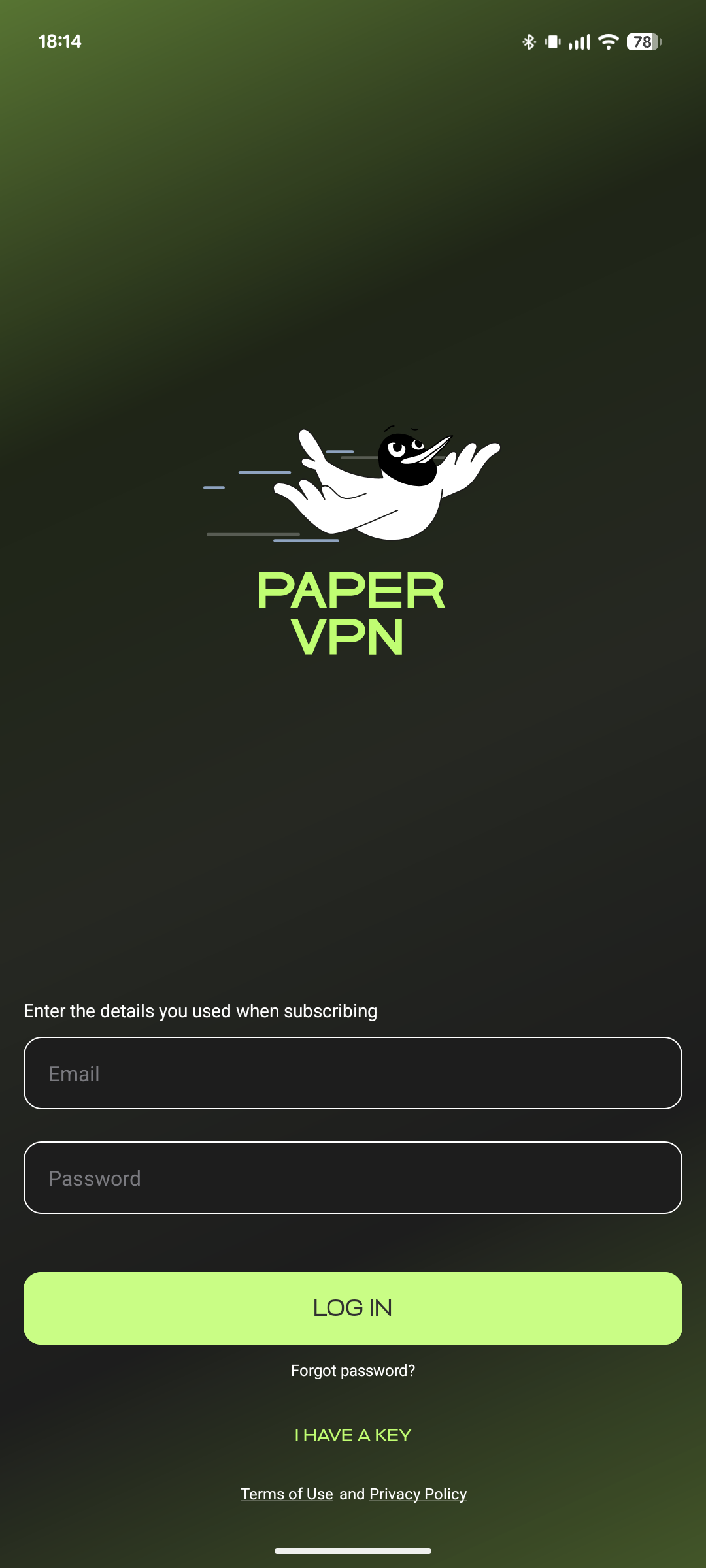
2. Open the app. Tap Log In and enter the email and password.
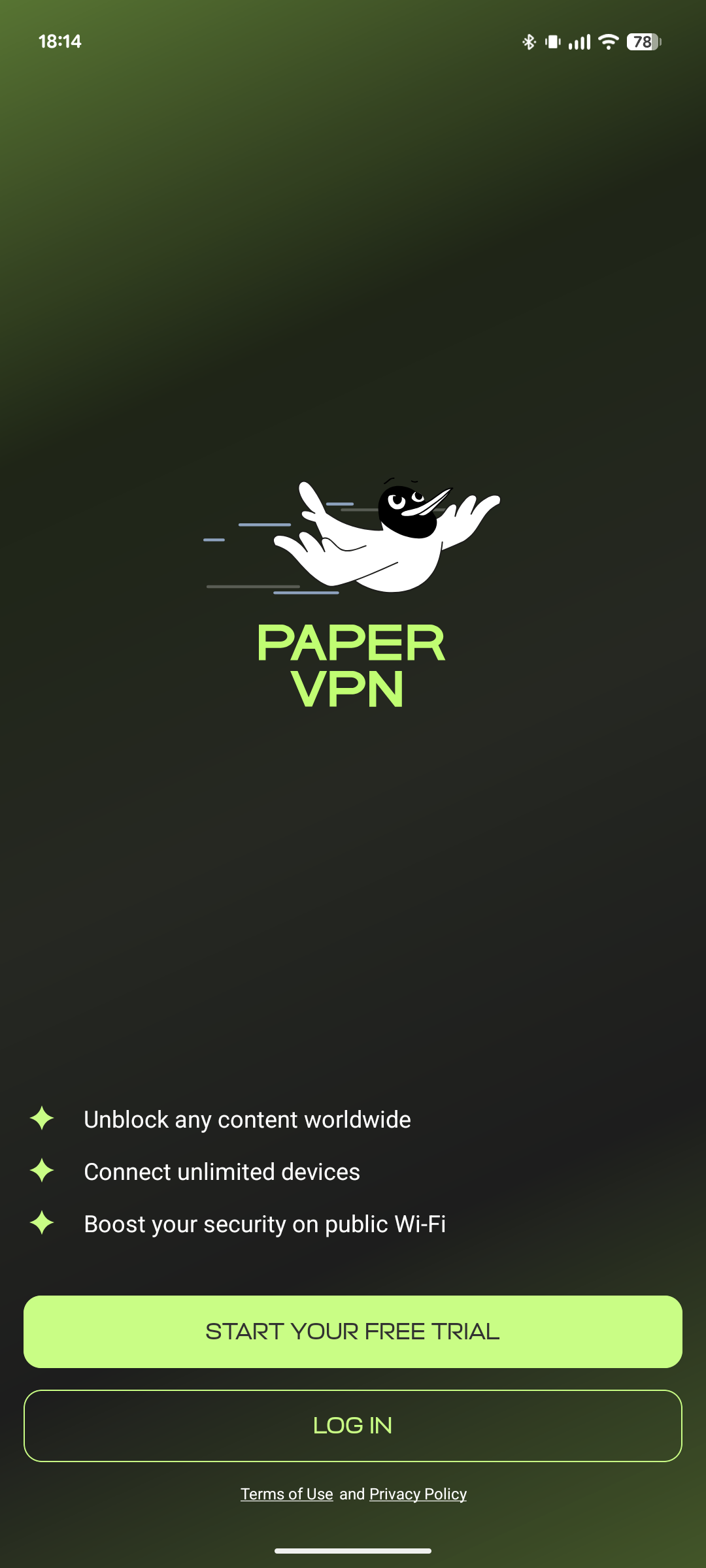
Or use the access key: tap I Have A Key, paste the key and tap Сonfirm.
On first launch
You will see a pop-up window asking for permission to set up a VPN connection. Tap OK — it’s safe.

Paper VPN Lite
1. Install the app from Google Play.
If you have a Huawei smartphone or another device where Google Play is not available, download the installation file here.
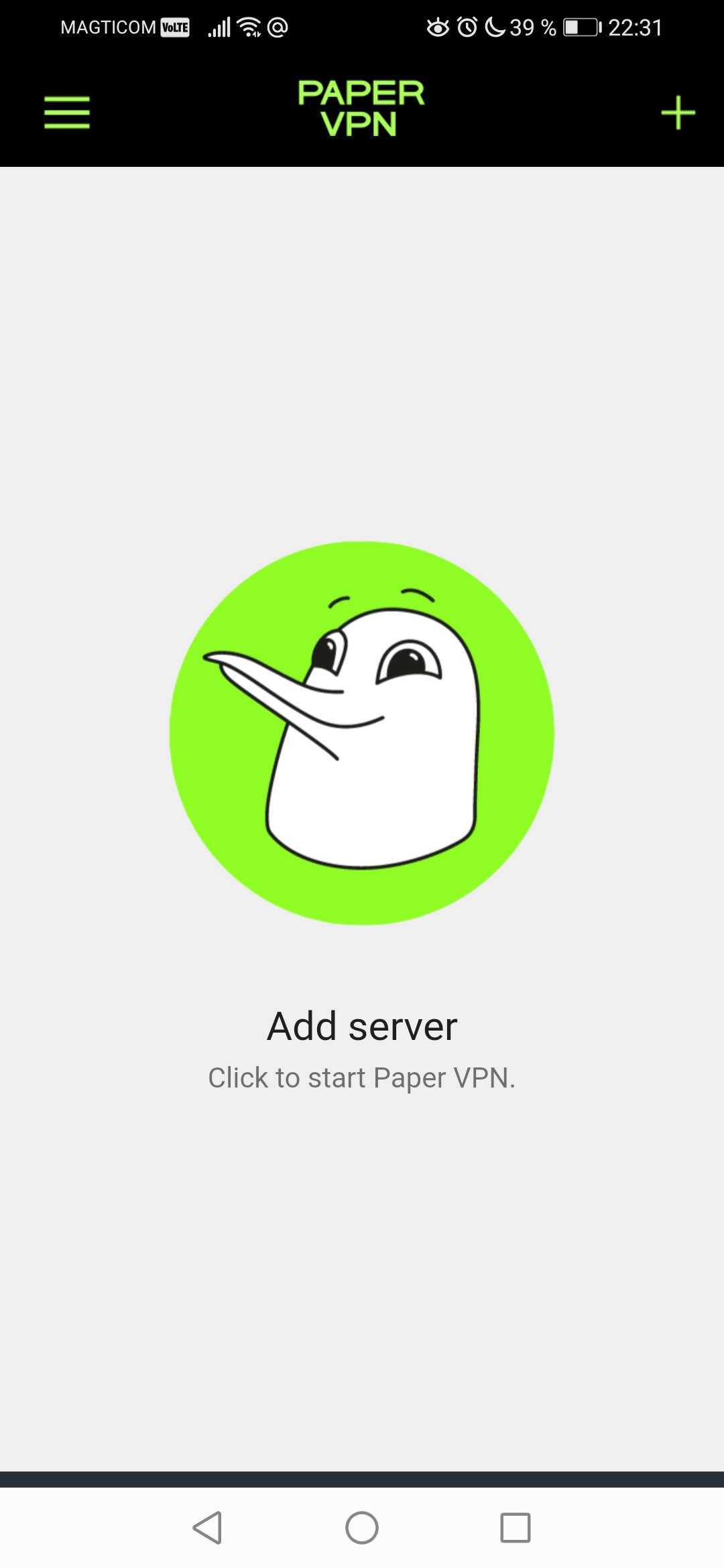
2. Open the app, tap Turn on, and paste the access key.
Happ
1. Install the Happ app from Google Play.
If you have a Huawei smartphone or another device where Google Play is not available, download the installation file from the official Happ website.
After the first launch, the app will ask for permission to send notifications. Tap Allow.
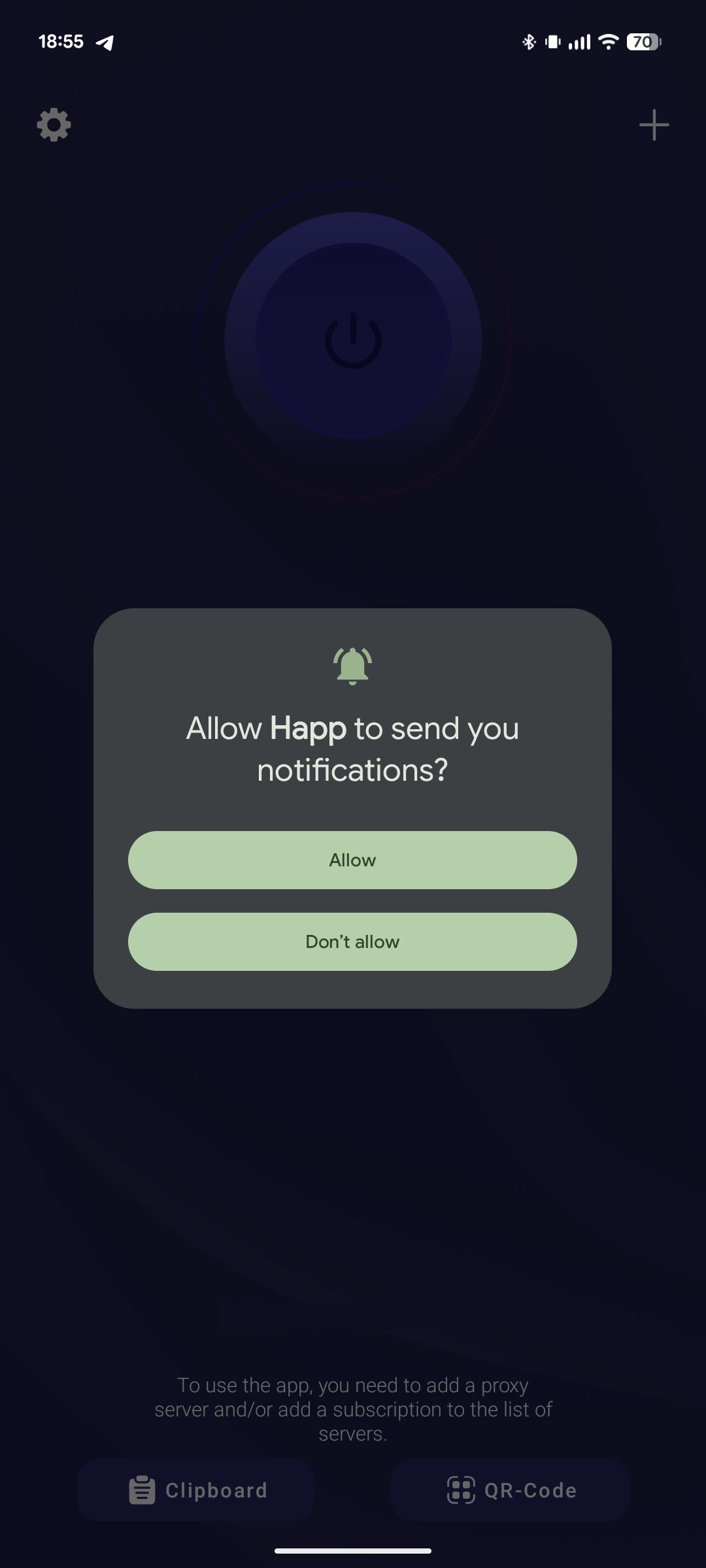
2. Open the app and tap the plus icon (+) in the top-right corner. Select Paste from clipboard. Or tap the From clipboard button in the bottom-left corner.
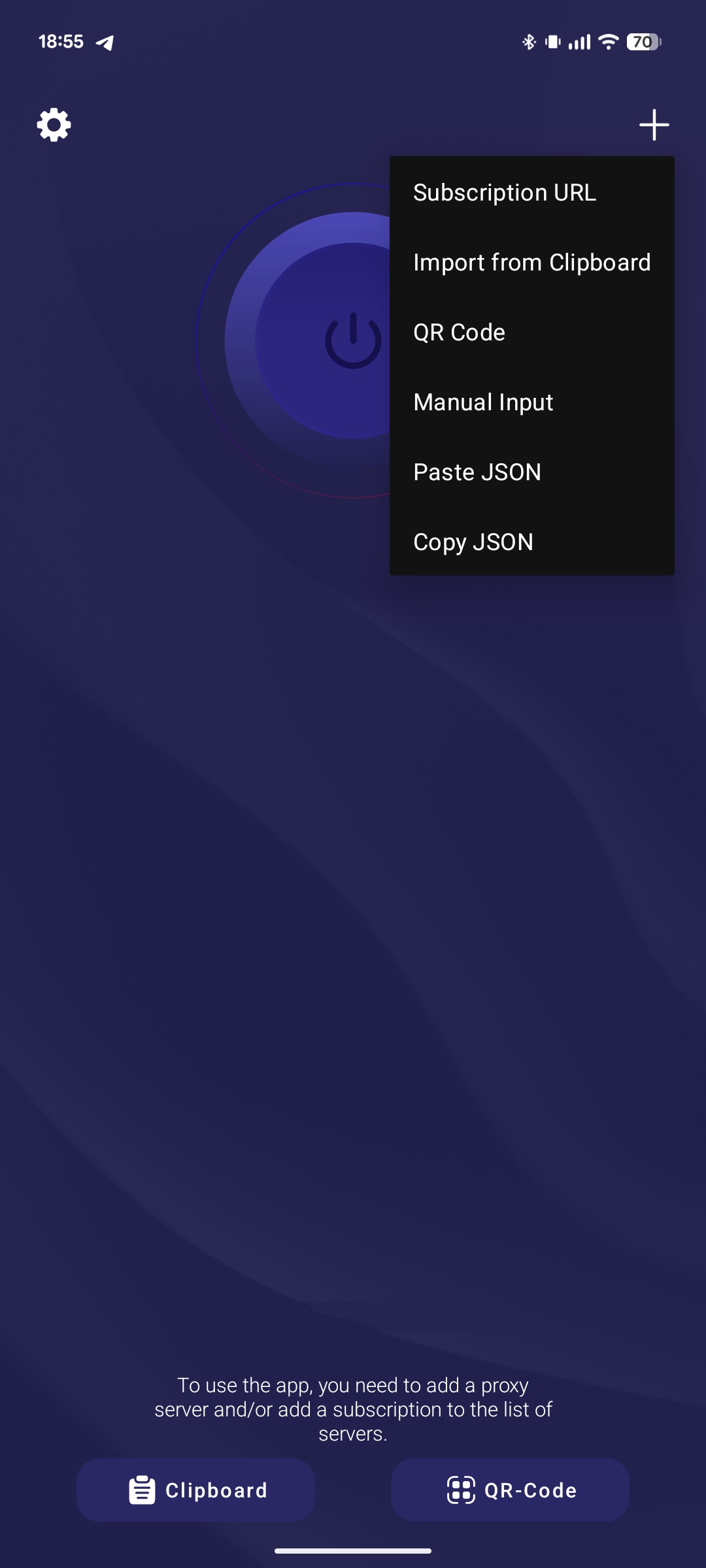
3. The key will appear in the center of the screen. Tap the large button at the top to turn on VPN.
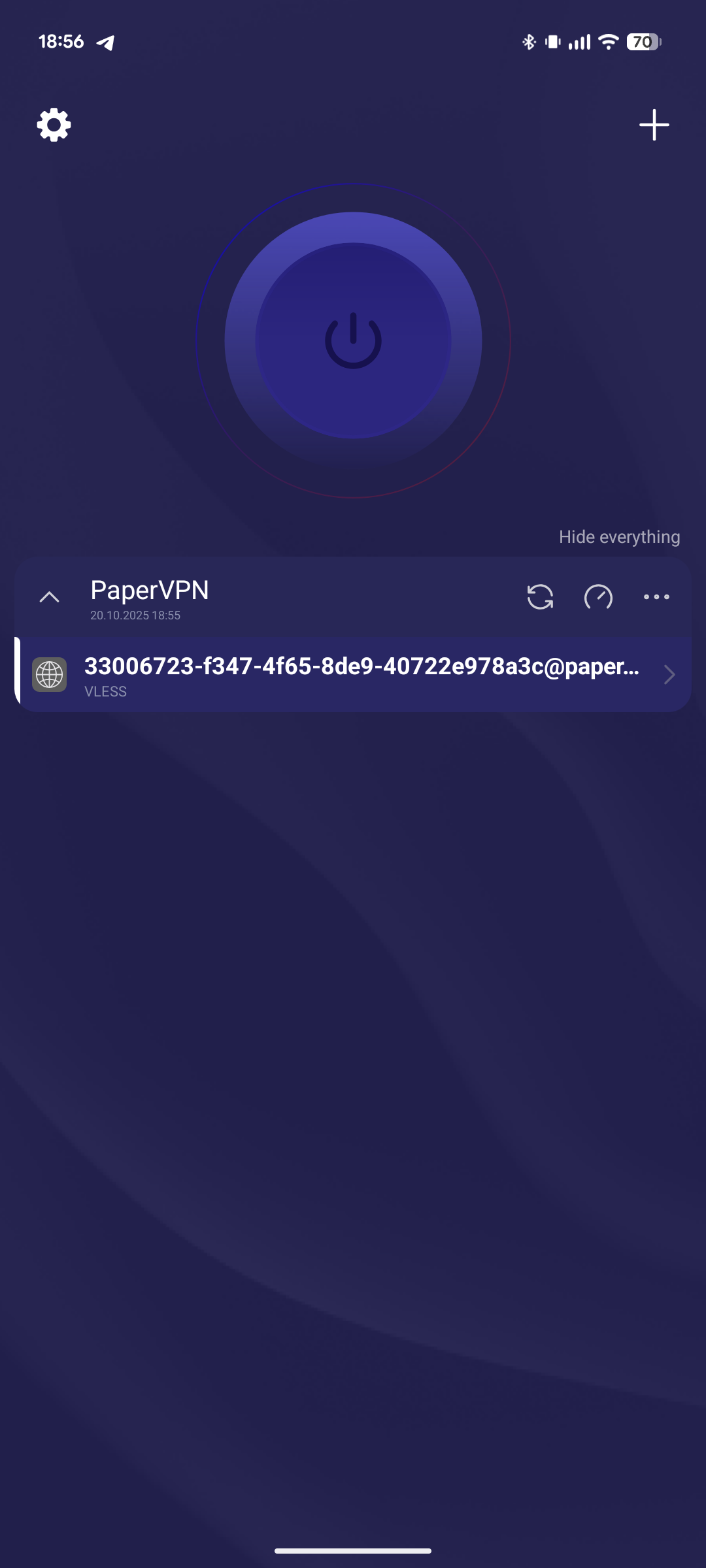
4. Before the first connection, the app will ask for permission to add a configuration. Tap Allow.
What to do after switching the server or location
If you need to switch the server or server location, refresh the key. To do this, tap the refresh icon (two circular arrows 🔃).
Hiddify
1. Install the Hiddify app from Google Play.
If you have a Huawei smartphone or another device where Google Play is not available, download installation files from GitHub — choose APK Universal.
2. Open the app, tap the plus icon (+) in the top-right corner of the screen, then select Clipboard.
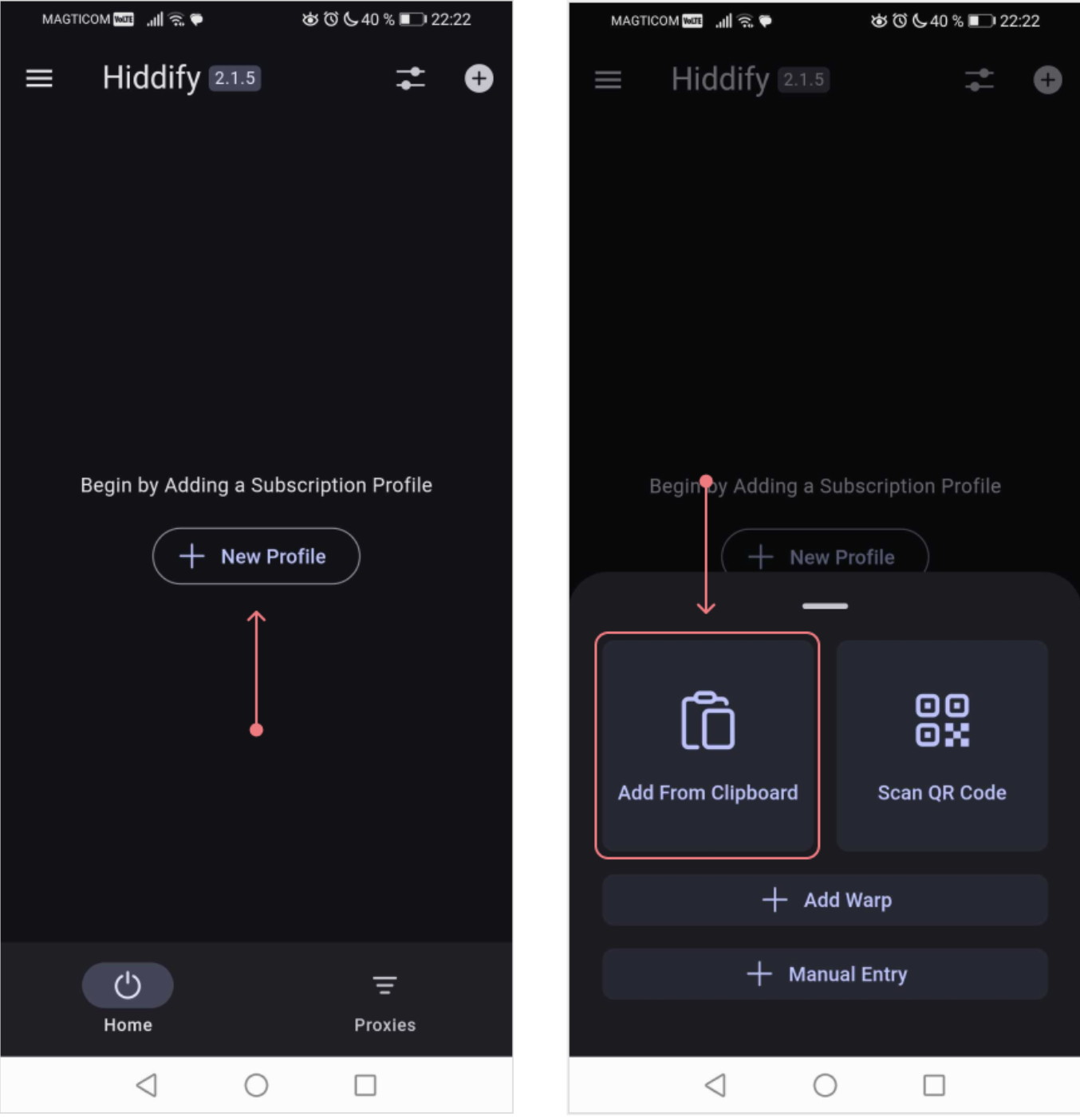
The key will appear in the center of the screen. Before the first connection, the app will ask for permission to add a configuration. Tap Allow.
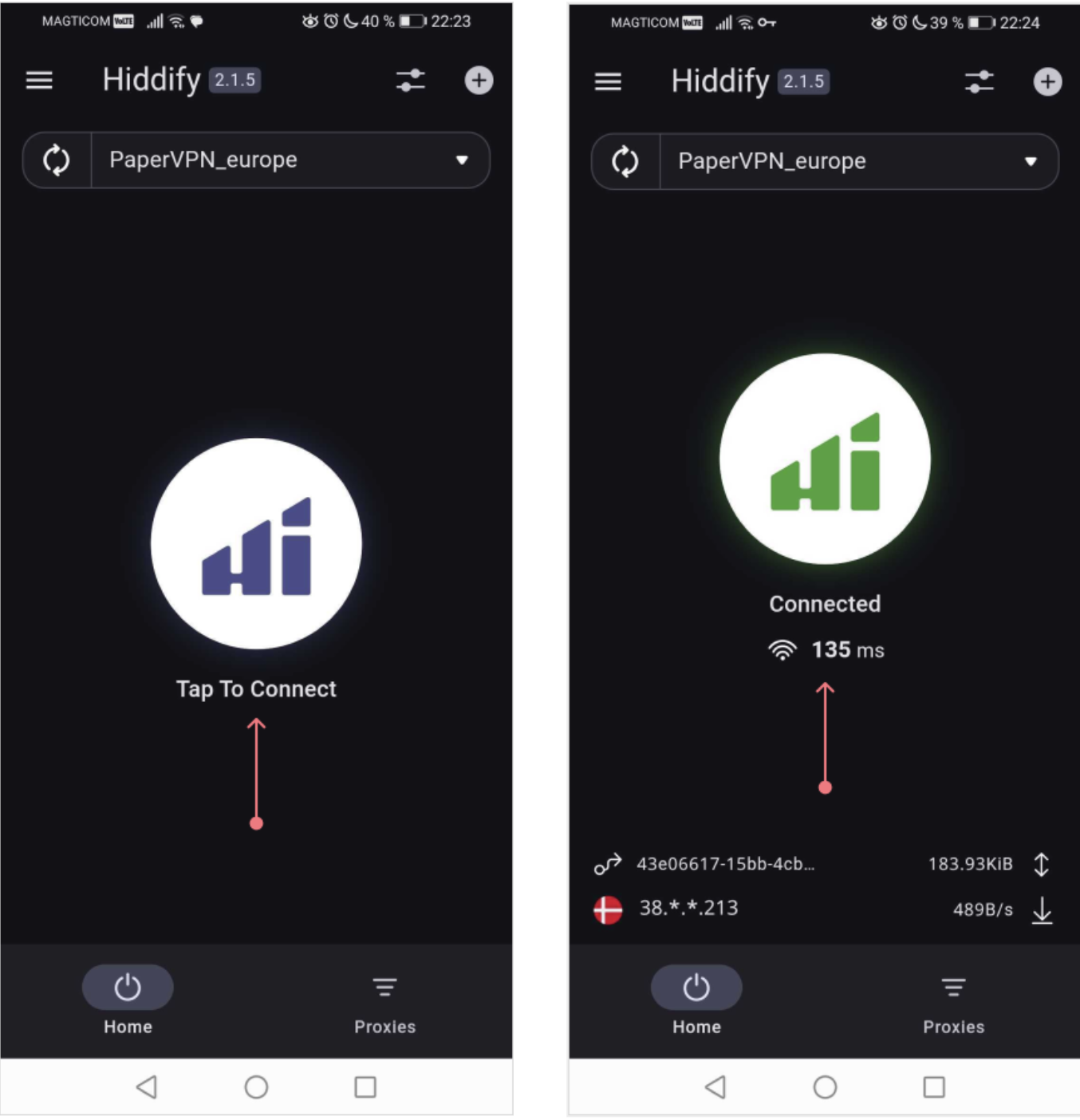
What to do after switching the server or location
If you need to switch the server or server location, refresh the key. To do this, tap the refresh icon (two circular arrows 🔃).
How to Set Up Paper VPN on iPhone and iPad
Use Paper VPN, Happ or V2RayTun app.
Paper VPN App
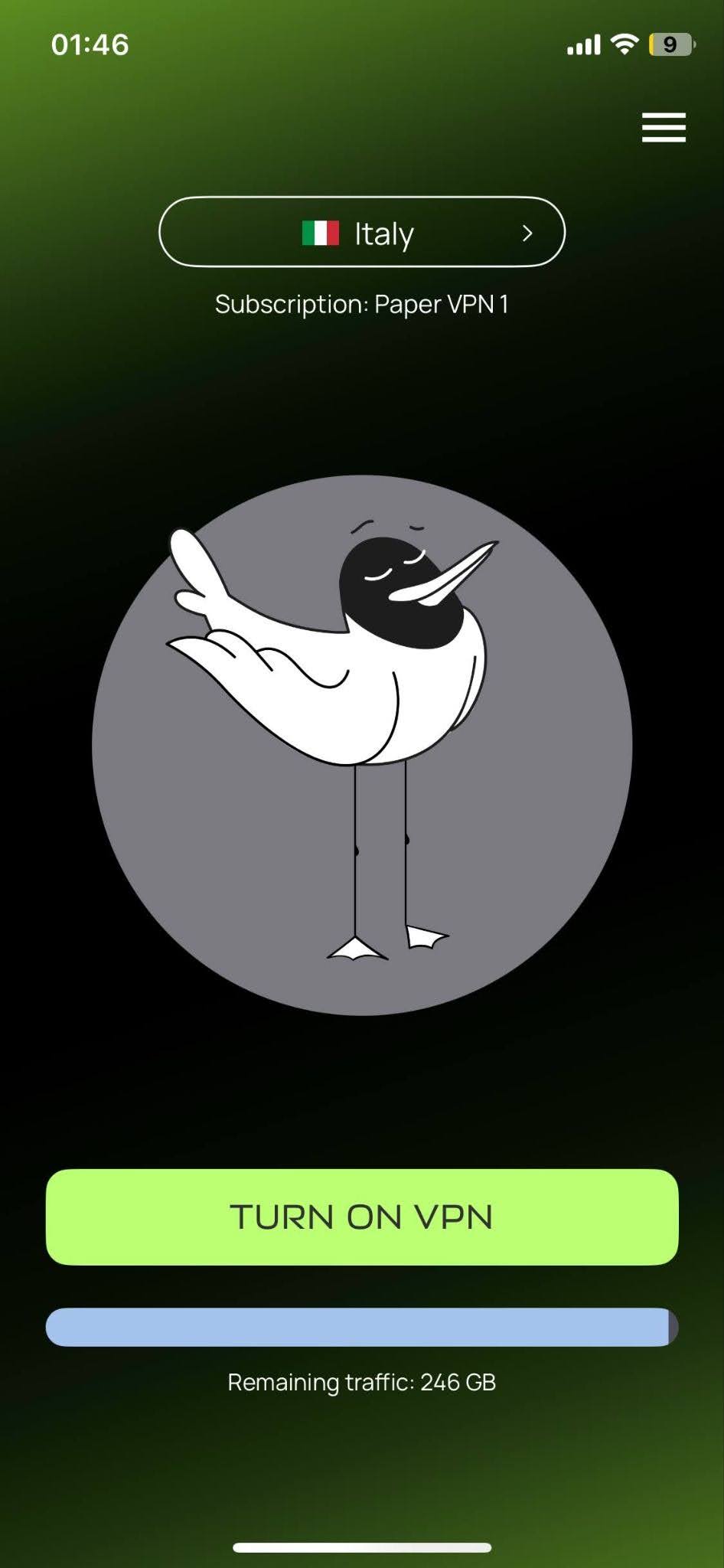
1. Install the app from the App Store.
2. Open the app. Tap Sign In and enter the email and password.
Happ
1. Install the Happ app from the App Store.
2. Open the app and tap the plus icon (+) in the top-right corner. Select Paste from clipboard. Or tap the From clipboard button in the bottom-left corner.
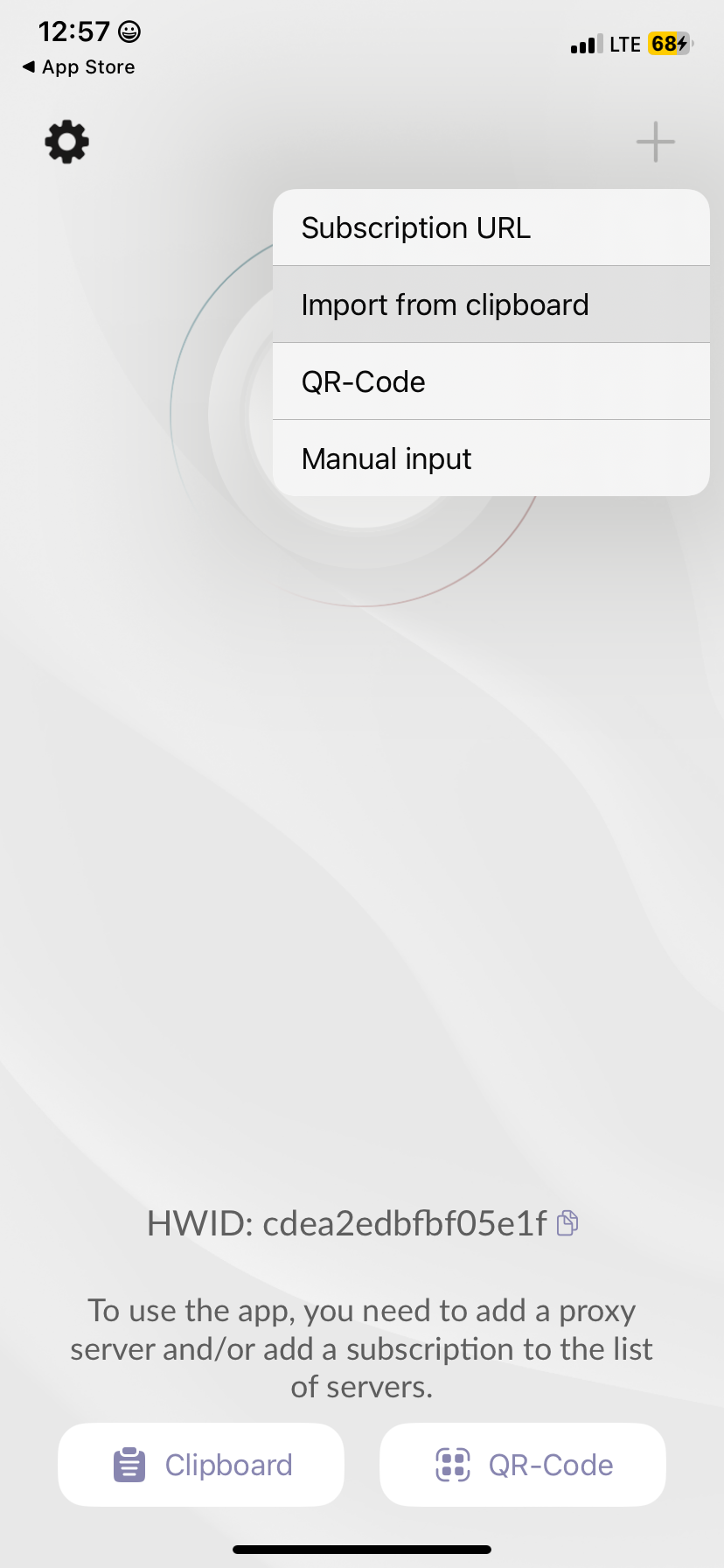
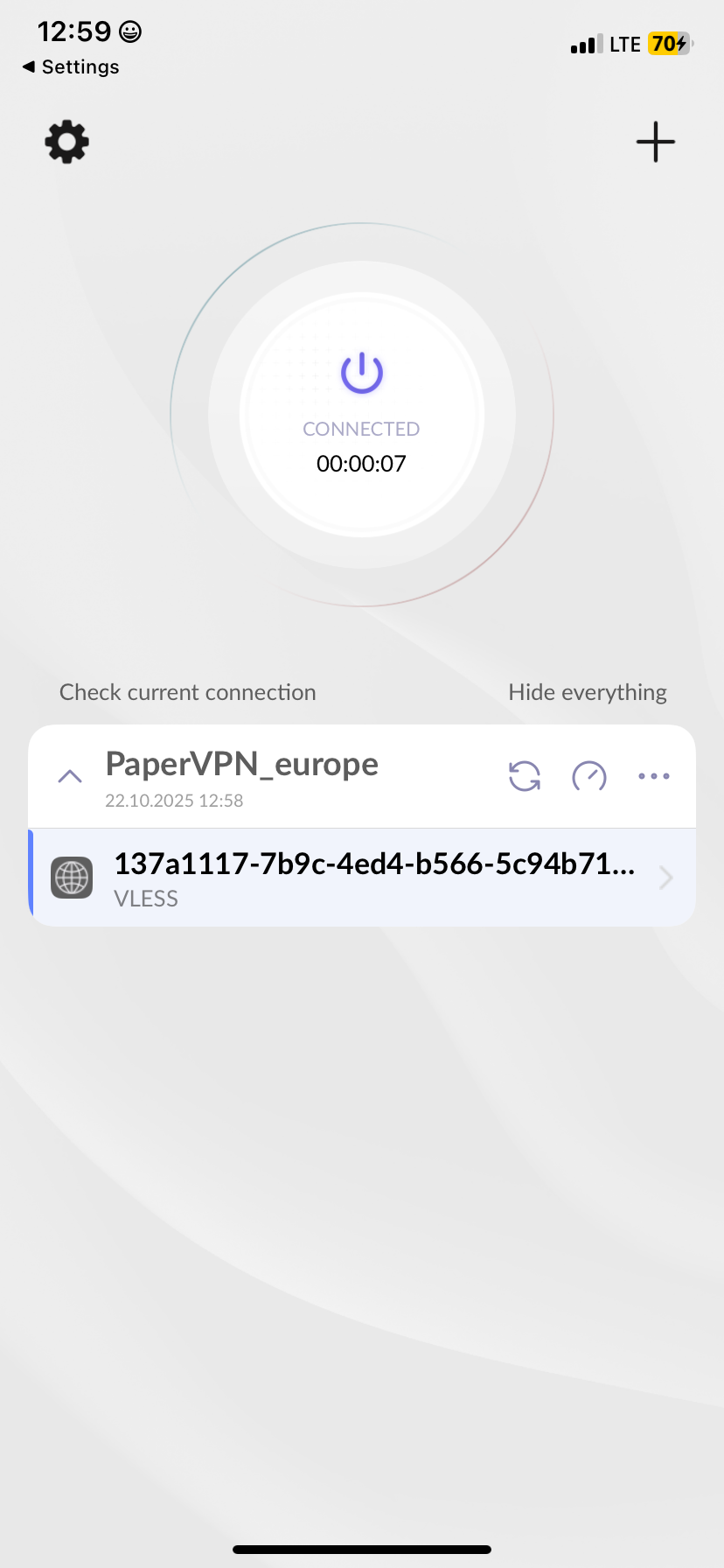
3. The key will appear in the center of the screen. Tap the large button at the top to turn on VPN.
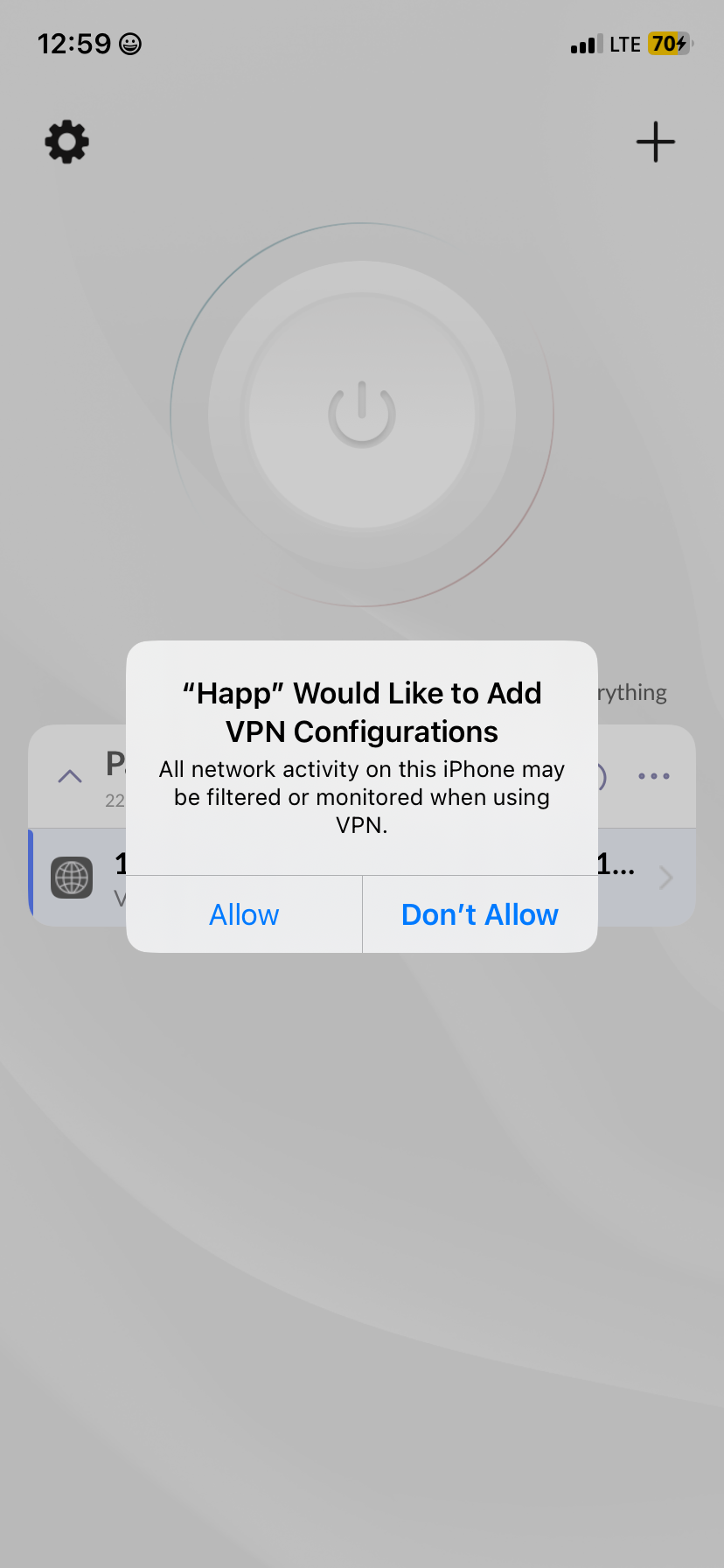
4. Before the first connection, the app will ask for permission to add a configuration. Tap Allow.
What to do after switching the server or location
If you need to switch the server or server location, refresh the key. To do this, tap the refresh icon (two circular arrows 🔃).
How to Set Up Paper VPN on Mac
Use Paper VPN, Pepper VPN or Happ app.
Paper VPN App
1. Install the Paper VPN app from the App Store.
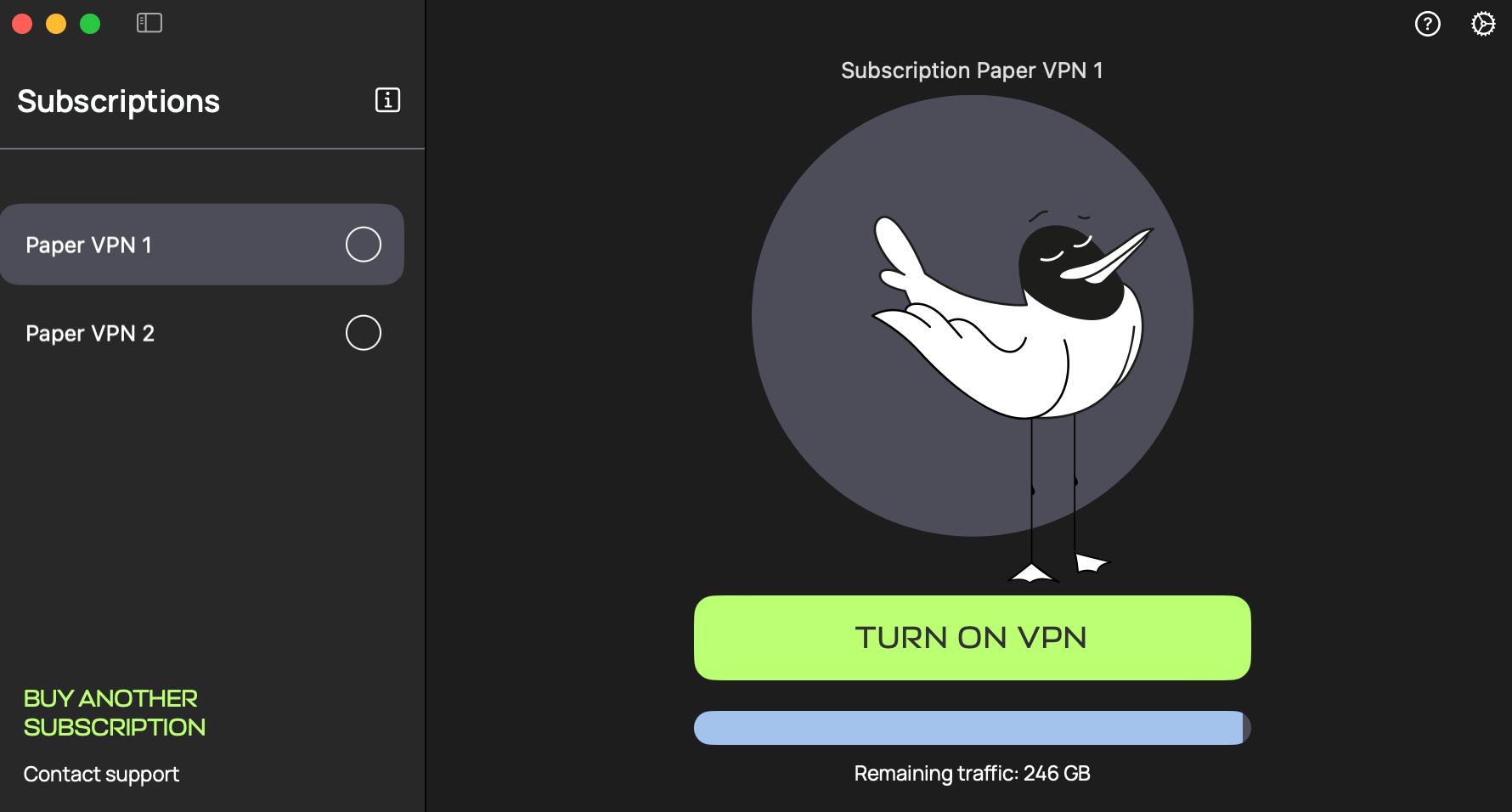
2. Open the app on your computer. To log in, enter the email and password.
Pepper VPN
1. Install the Pepper VPN app from the App Store. The app installs silently, launches immediately, and appears in the top menu bar.
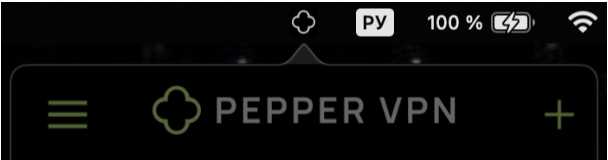
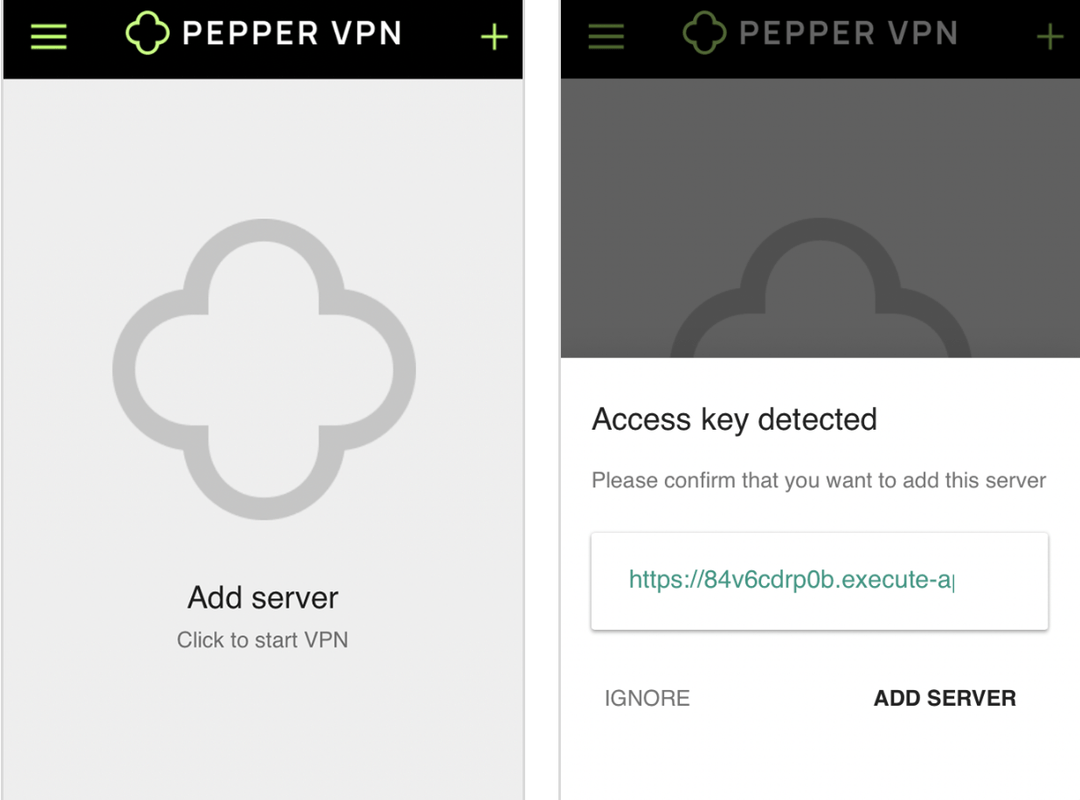
2. Open the app and click the plus icon (+) in the top-right corner. Then paste the key into the field that appears and click Add.
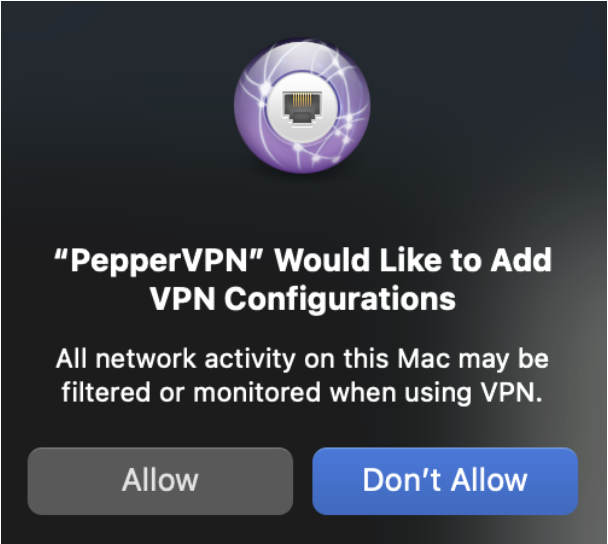
3. Before the first connection, the app will ask for permission to add a configuration. Click Allow.
Happ
1. Install the Happ app from the App Store.
2. Open the app and click the plus icon (+) in the top-right corner. Select Paste from clipboard. Or click the From clipboard button at the bottom center.
How to Set Up Paper VPN on Windows
Paper VPN App
1. Install the Paper VPN app — click on the link, and the file starts to load.
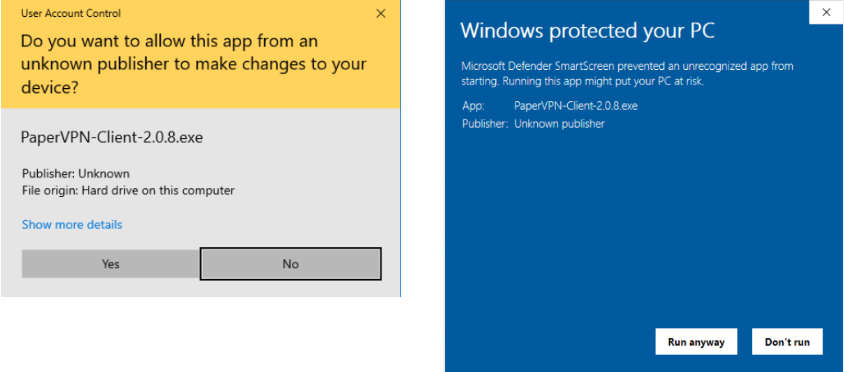
Right-click the file and select Run as administrator. The OS may warn about a missing certificate. This warning may look like in the screenshot below. Proceed with the installation anyway — it's safe.
2. Open the app and click the plus icon (+) in the top-right corner.
3. Click the field with the key icon that appears.
Hiddify
1. Install Hiddify — click on the link, and the file starts to load.
Right-click the file and select Run as administrator. The OS may warn about a missing certificate. Proceed with the installation anyway.
2. Open the app. Click the plus icon (+) at the top of the main screen.
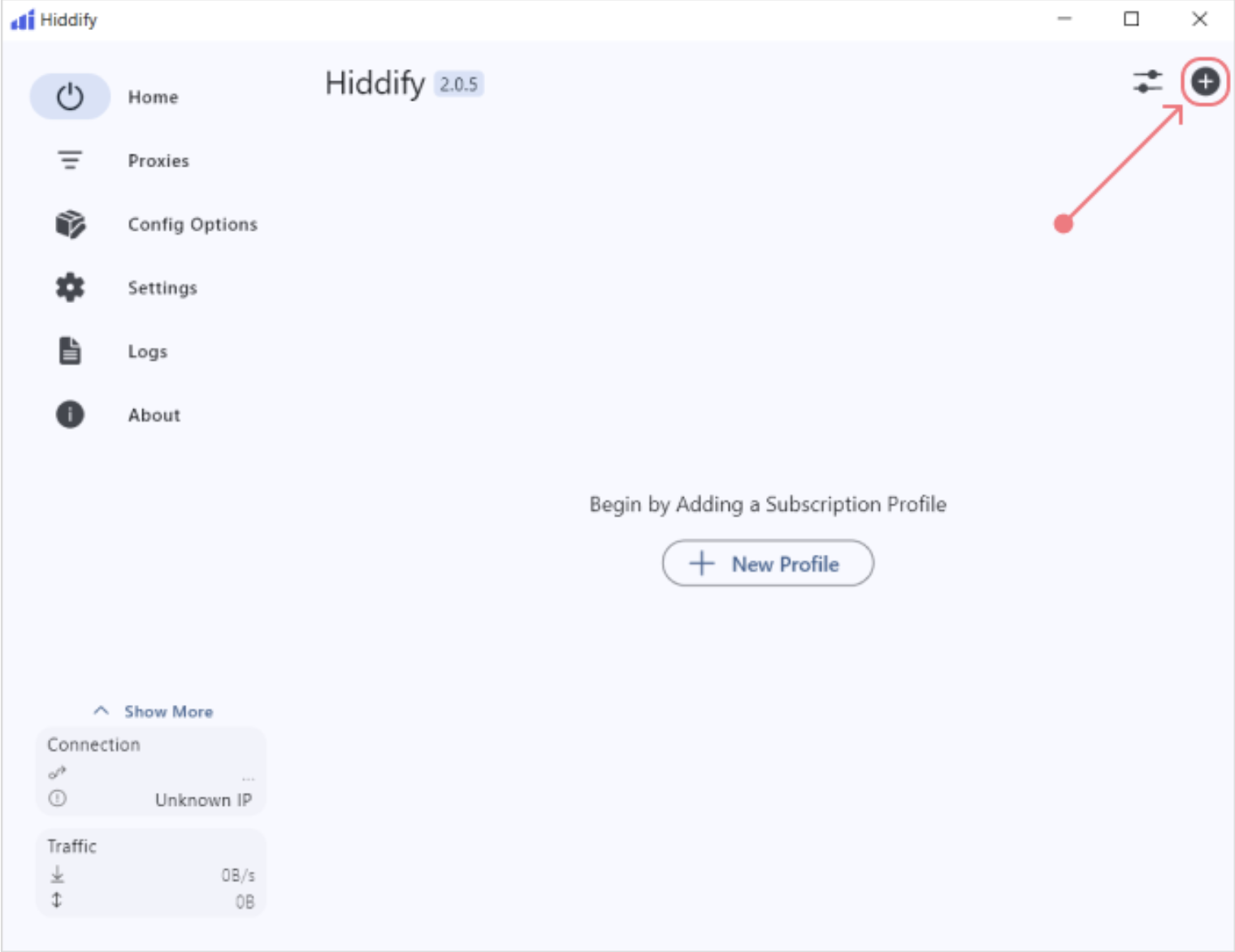
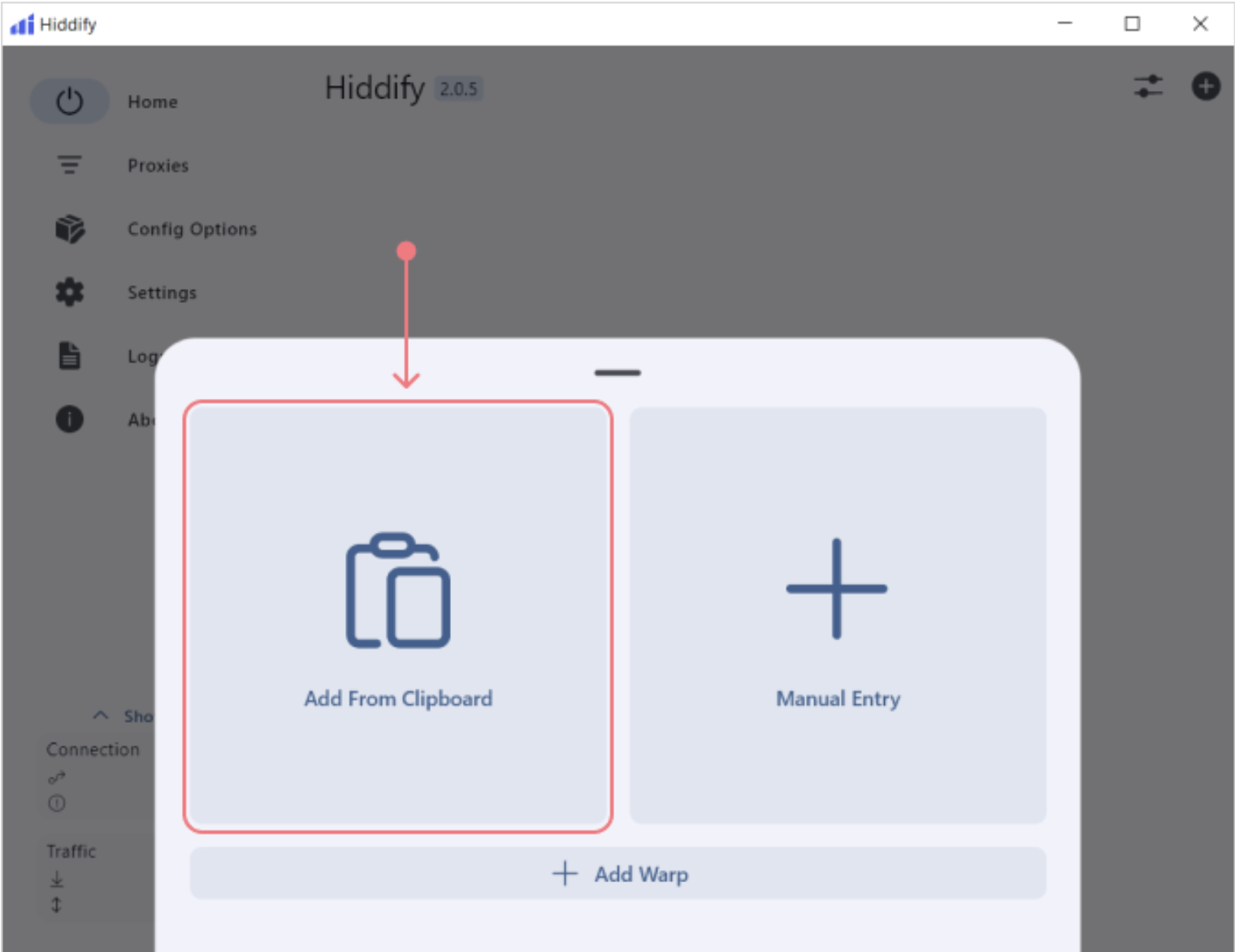
4. Select Clipboard.
3. Before the first connection, you may be asked to grant access. Click Allow Access.
What to do after switching the server or location
If you need to switch the server or server location, refresh the key. Click the refresh icon (two circular arrows 🔃).
How to Set Up Paper VPN on Android TV
Paper VPN App
1. Install the Paper VPN app. Open Google Play Store on your TV → search for Paper VPN → tap Install.
If you have a Huawei TV or another device where Google Play is not available, download the installation file here.
2. Enter the email and password from your account. The easiest way is to do this using your TV remote. If this type of control is not available on your device, here’s how to do it using your smartphone.
Connect your smartphone to the TV
● Install the Remote for Android TV app on your smartphone (Android or iOS) and launch it.
At the top of the app screen, tap Select TV. Both your TV and your smartphone should be connected to the same Wi-Fi network.
● Select the TV or set-top box you want to connect.
● Enter the connection code shown on the TV screen into the field that appears.
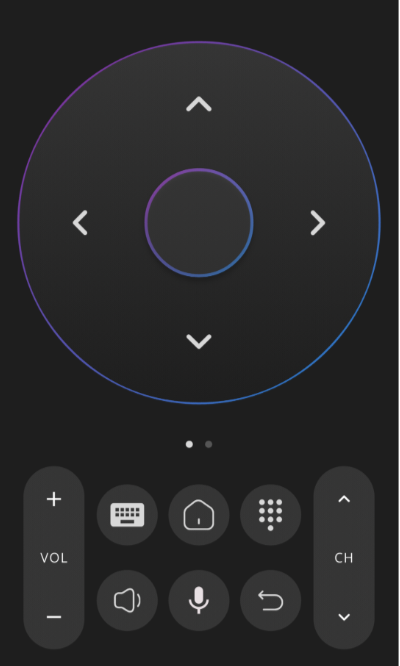
● On the TV, open the Paper VPN app, and on your smartphone, return to the Remote for Android TV app. Navigate between buttons in the Paper VPN app using the Remote for Android TV emulator on your smartphone.
3. Press the plus icon (+) in the top-right corner of the screen. Usually, you need to press the Right arrow to highlight it.
4. Tap the key input field. Usually, you need to press the Down button to highlight it.
In the Remote for Android TV app on your smartphone, an input field will open automatically. Everything you type in this field is automatically sent to the Android TV.
5. Enter your email and password.
Happ
Step 1. Installation and setup on your phone
Install the Happ app from the App Store or Google Play.
Step 2. Installation and setup on Android TV
1. Install the Happ app on your TV. Open Google Play Store on your TV, search for Happ, and tap Download.
2. Open the Happ app on your TV. You will see a QR code — it appears on first launch. Scan the QR code using the Happ app on your smartphone. This is needed to add your subscription to the Happ app on the TV.
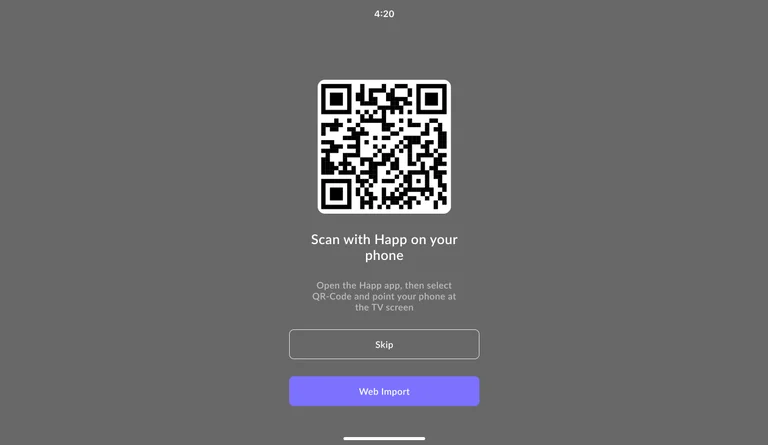
There is another option — you can remotely link subscriptions in the Happ app on your TV and phone via the website tv.happ.su. Select Web Import on the TV. You will see a code — enter it. Or scan the QR code and open the link on your phone.

3. Press the power button on the TV screen to turn on VPN.
How to Set Up Paper VPN on Apple TV
Install the Happ app on your set-top box and phone.
Set Up Happ on Your Phone
Install the Happ app from the App Store or Google Play.
Add Happ to Apple TV
1. Open the App Store on your TV, find the app in search, and tap Download.
2. Start setting up the connection on the set-top box. Open Happ on your TV. A QR code will appear on the screen.
3. Scan the QR code using the Happ app on your phone. Open the app on your phone, tap the plus icon (+) in the top-right corner, and select QR code.
4. The app will request access to the camera — allow it. Then scan the QR code from the TV.
5. You will see a prompt asking for permission to find devices on the local network. Tap Allow.
6. On your phone, check the box next to our service and tap Send.
7. Before the first connection, the app will ask for permission to add a configuration. Tap Allow.
How to Switch Your Server or Location
If the VPN is unstable or not working properly, we always recommend switching the server first — or, even better, switching the server location right away.
In your account
1. In the Subscriptions, you will see the options Switch server location and Switch server.
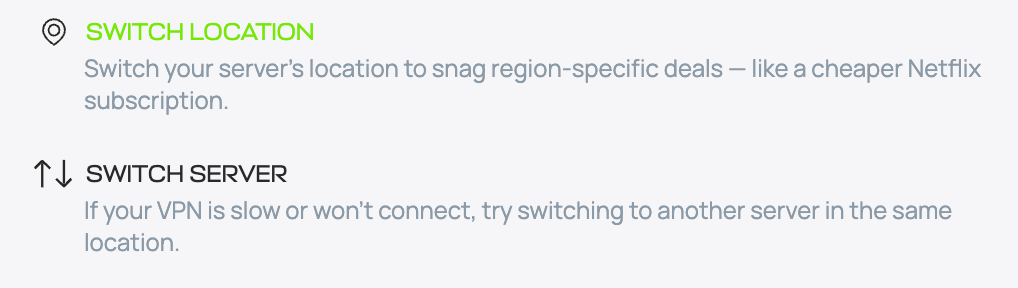
2. If you're switching the server, click Switch server, then Switch.

3. If you're switching the server location, click Switch server location, then select the country you like.
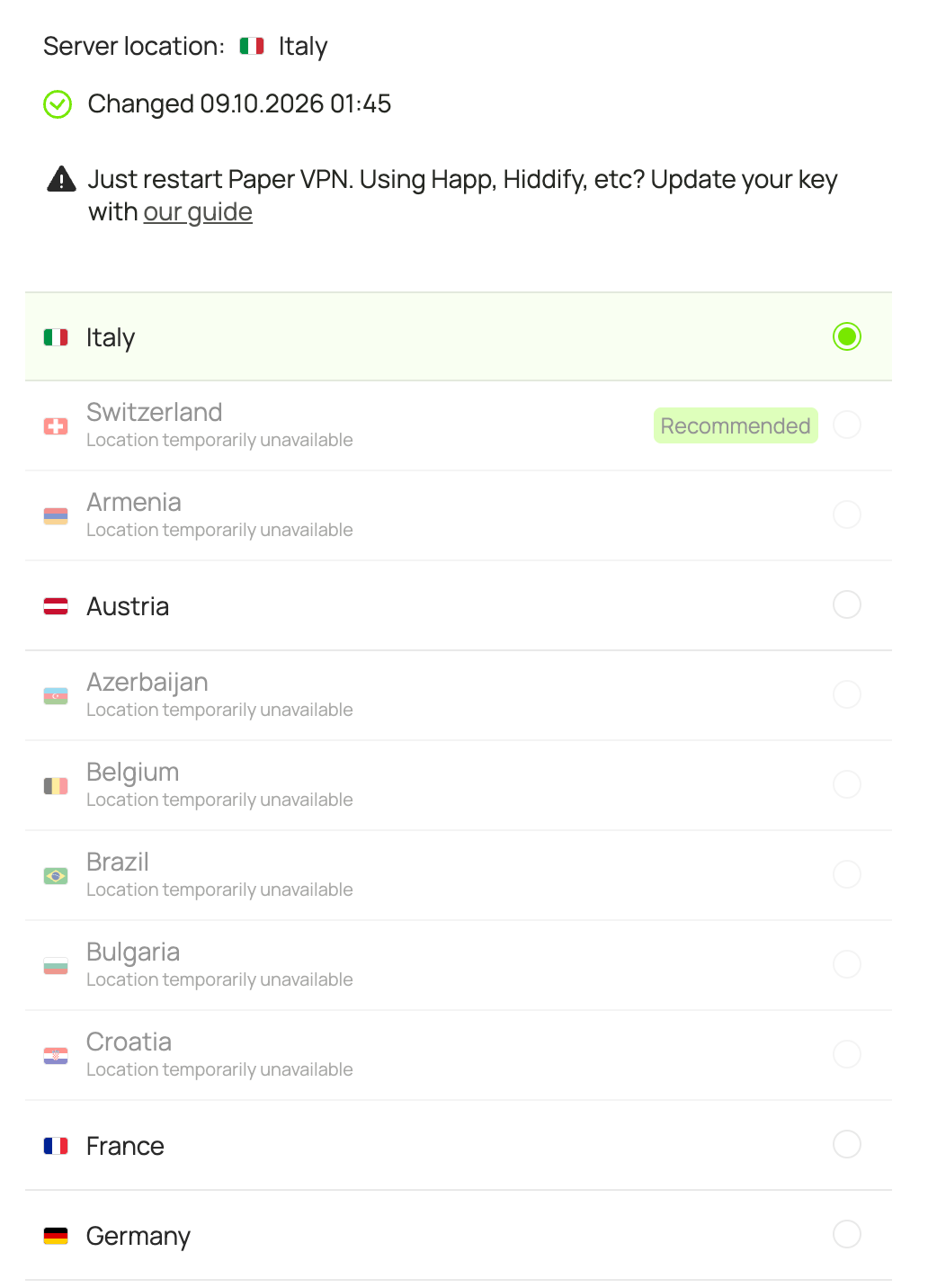
After you've selected the new location, click Switch.
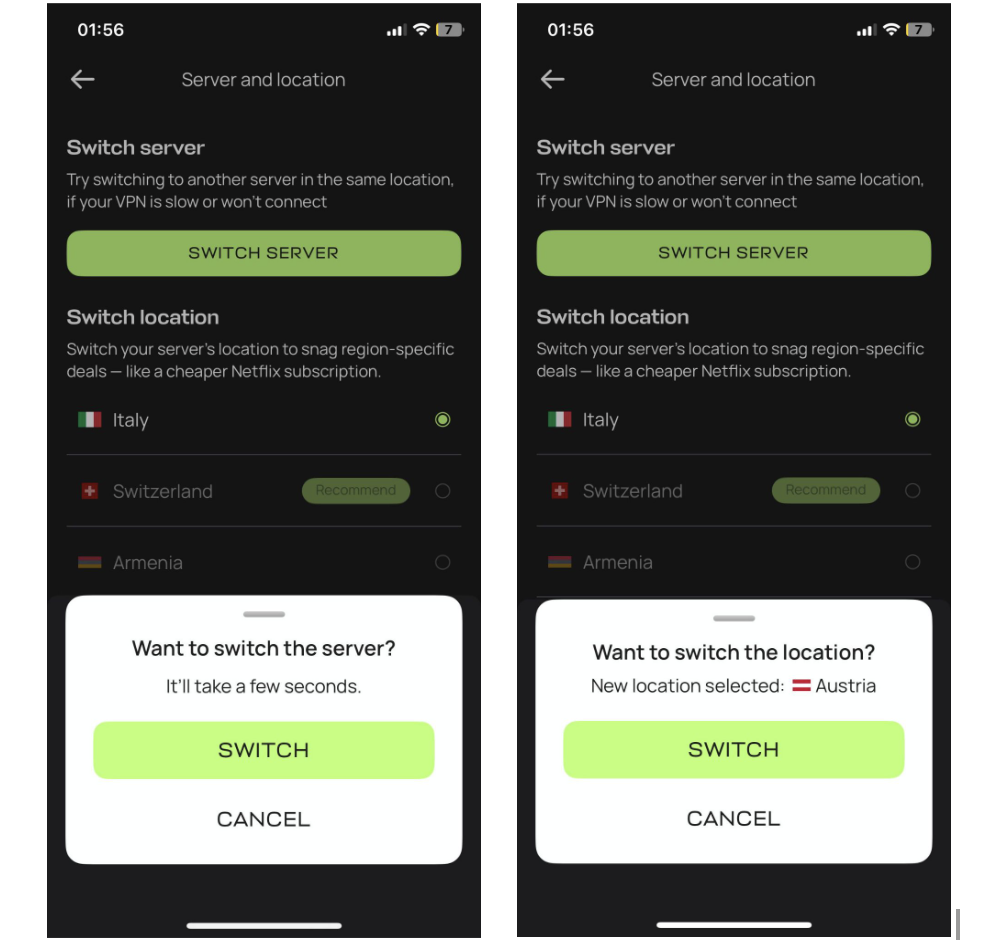
In the Paper VPN app for iOS and Android
1. Tap the button with the country name and flag.
2. Tap Switch server or select a new location.
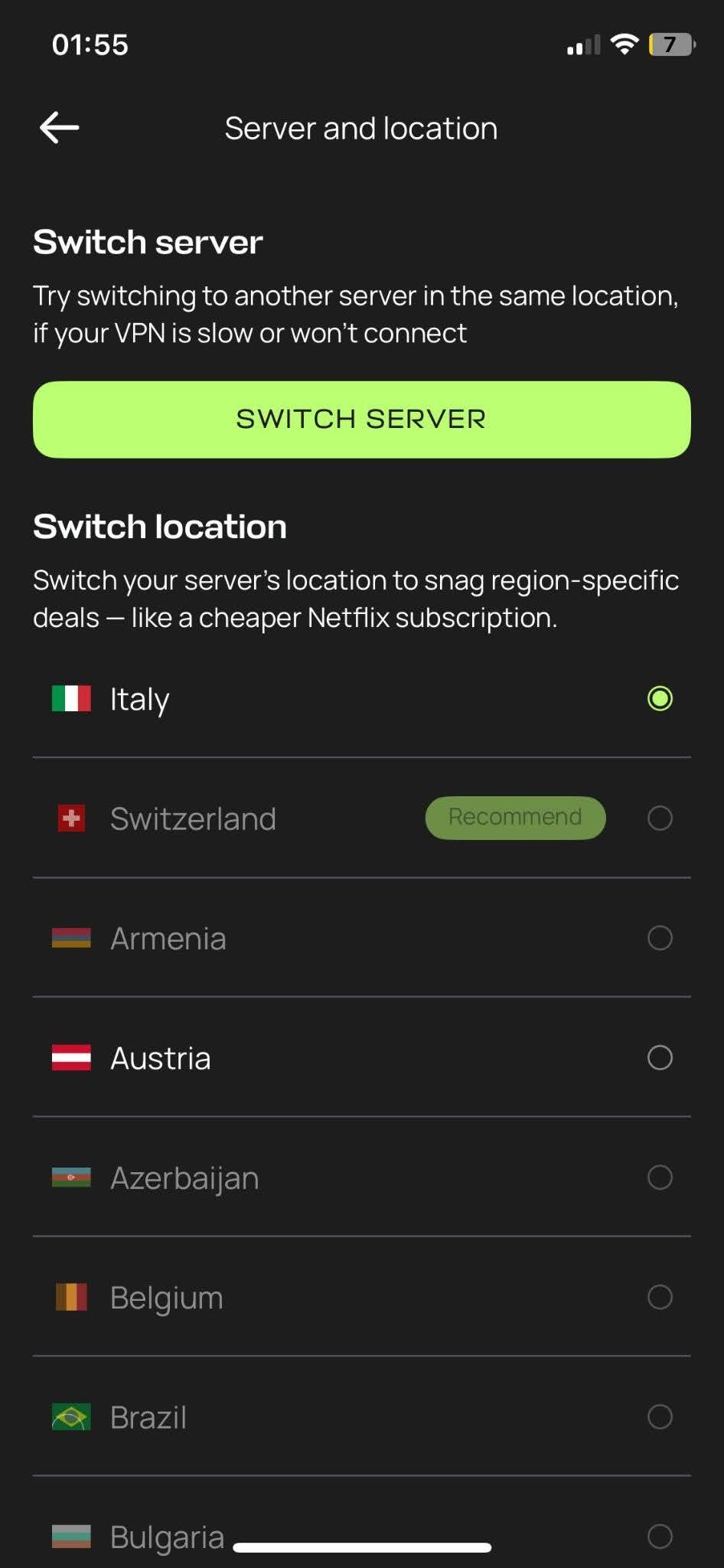
3. Tap Switch. The change takes a few seconds.
What to do after switching the location
In Paper VPN: turn the VPN off and on again.
In Happ, Hiddify, or V2RayTun: tap the refresh icon (two circular arrows 🔃)
How to Check That Paper VPN Is Connected
Open the VPN app — if the power button has turned gray and says Turn off VPN, the VPN is on.
You can also visit a website that checks your IP address.
How to check your IP
1. Turn off the VPN and open a site such as 2ip.ru, ipinfo.io, or whatismyipaddress.com. Note your IP address and country.
2. Turn on the VPN and refresh the page.
3. If the IP and country have changed to those of the VPN server, everything is working.
Troubleshooting
If the VPN isn’t working, first read the instructions again and try a different app from the list for your device. If nothing works, check your inbox for an email from us.
More about get started